
Applications
MultiFlexi Application Requirements
MultiFlexi can execute applications written in any programming language. The application must read its configuration from environment variables and can output results to files or monitoring systems.
How Applications Work
MultiFlexi applications are defined using JSON files that describe:
Basic Information: Name, description, author, and version
Execution Details: How to run the application (command or container image)
Configuration Fields: What settings users need to provide
Output Information: What files or data the application produces
When you install an application, MultiFlexi reads this definition and creates configuration forms automatically. Users fill in the required information, and MultiFlexi handles running the application with the correct settings.
Application Categories
MultiFlexi applications are organized into categories to help you find what you need:
Accounting: Invoice processing, financial reporting, ERP integrations
Banking: Transaction reports, bank statement processing
Communication: Email reports, SMS notifications, messaging integrations
Database: Data exports, backups, synchronization
Monitoring: System health checks, performance metrics, alerts
Security: Vulnerability scans, compliance checks, audit reports
Basic Application Setup
Setting up an application involves three main steps:
Installation: Install the application package (usually done by system administrator)
Configuration: Provide required settings like database connections, API keys, file paths
Scheduling: Set when and how often the application should run
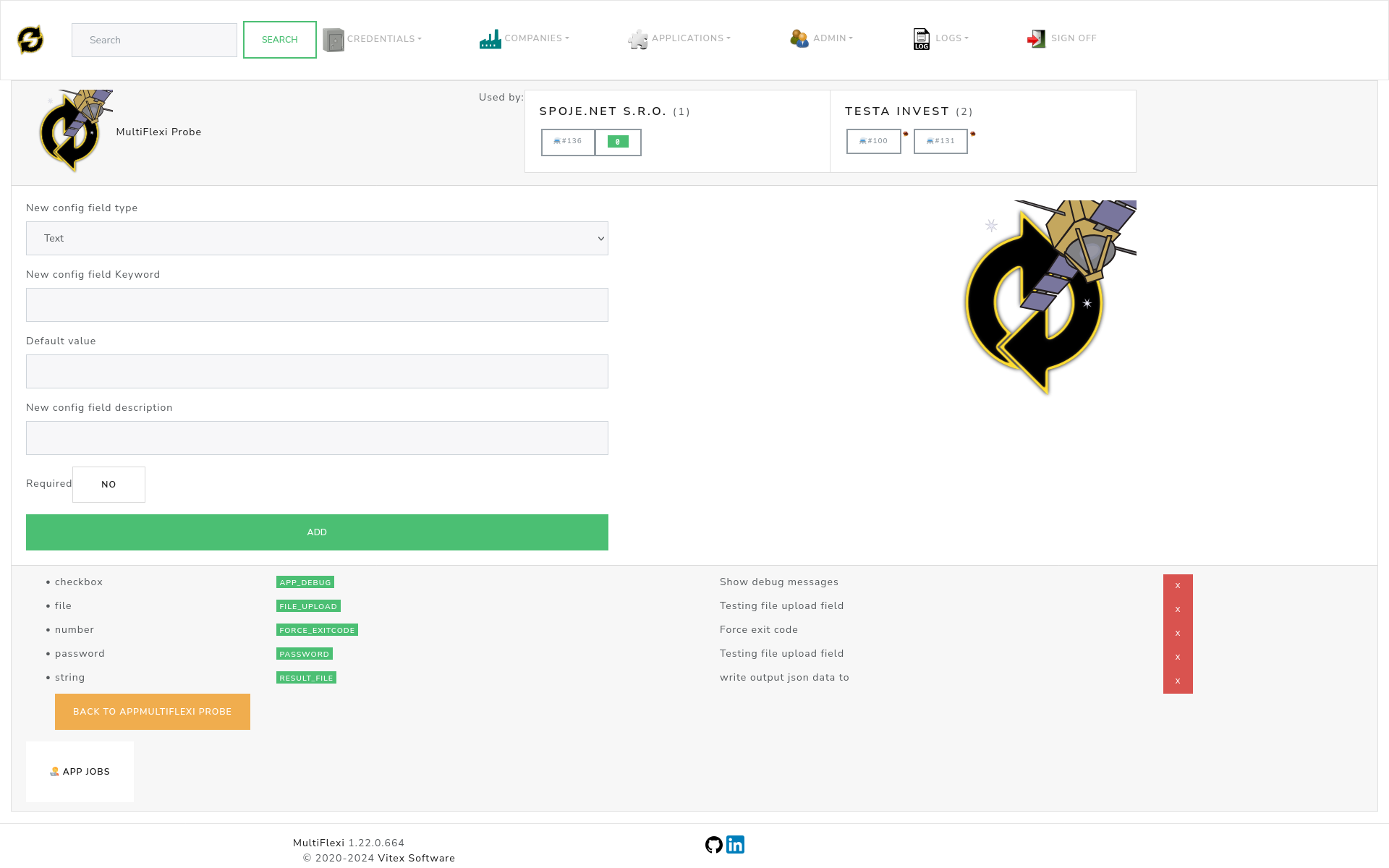
Configuration Field Types
Applications use different types of configuration fields:
Text Fields: For entering names, descriptions, and simple values
Password Fields: For API keys and sensitive information (hidden from view)
File Paths: For selecting files or directories on the server
Email Addresses: For notification recipients and email configuration
URLs: For API endpoints and web service connections
Numbers: For timeouts, limits, and numeric settings
Checkboxes: For yes/no options and feature toggles
Dropdown Lists: For selecting from predefined options
Finding Applications
You can find MultiFlexi applications in several ways:
Package Manager (for system administrators):
apt search multiflexi
Application Store: Visit the MultiFlexi apps page to browse available applications.
GitHub Repositories: Many applications are available as open source projects that can be packaged for your system.
Tip
To install all available applications at once, ask your system administrator to install the multiflexi-all meta package.
Defining Output Artifacts
Applications can declare the output files they produce using the artifacts
array in their JSON definition. Each artifact entry tells MultiFlexi what kind
of file to look for after the job completes.
Artifact Fields:
name(required) — Localized display name (string or{"en": "...", "cs": "..."})path(required) — Regex pattern matched against filenames in the temp directorytype(required) — Artifact type (e.g."file")description— Localized description of the artifact
Example:
"artifacts": [
  {
    "name": {"en": "JSON Report", "cs": "JSON zpráva"},
    "type": "file",
    "path": ".*\\.json$",
    "description": {"en": "Output report in JSON format"}
  },
  {
    "name": {"en": "PDF Invoice", "cs": "PDF faktura"},
    "type": "file",
    "path": "invoice_.*\\.pdf$",
    "description": {"en": "Generated invoice document"}
  }
]
After each job execution, MultiFlexi scans the temp directory and stores every
file whose name matches one of the defined patterns. This replaces the need to
rely solely on the RESULT_FILE environment variable (which is still
supported for backward compatibility).
See Job Lifecycle (Phase 6) for the full artifact collection flow.
Special Variables for Monitoring
Some applications can send their results to monitoring systems like Zabbix. These applications use special environment variables:
RESULT_FILE: Where the application saves its output data (legacy; preferartifactsfor new apps)ZABBIX_KEY: The name used to identify this data in Zabbix monitoring
These are automatically configured by MultiFlexi when you set up monitoring integration.
MultiFlexi Probe Application
MultiFlexi includes a built-in test application called “Probe” that’s useful for:
Testing MultiFlexi: Verify that your installation is working correctly
System Monitoring: Check system health and performance
Learning: Understand how applications work before creating your own
Debugging: Troubleshoot issues with application execution
The Probe application creates a simple JSON report showing system information and can be configured to test different types of fields and outputs.
Environment Variables
Variable |
Default |
Description |
|---|---|---|
|
|
Path to test file; passed as a command-line argument. |
|
|
Example password field; redacted in the env dump by default. |
|
|
Enable debug output. |
|
|
File path where the probe writes its JSON env dump. |
|
|
Exit with this code to simulate application failure. |
|
|
Sleep this many seconds before exiting, to simulate a long-running job. Set to |
|
|
Zabbix item key name template. |
|
|
When |
Creating Your Own Applications
If you’re interested in developing your own MultiFlexi applications, you’ll find everything you need in the developer documentation:
Technical application requirements
JSON schema specifications
Detailed examples and templates
Code samples in multiple languages
- See the MultiFlexi Application Development
section for complete technical documentation.
Note
For end users, focus on configuring and using existing applications. Application development requires programming knowledge and is covered in the developer documentation.